Adding a contract
Depending on your company workflow, the contract files can be added from the Project Tracker module or from the Contract module.
Before adding the contract, you must have at least one seismic record ready to link to the contract.
To add a new contract:
|
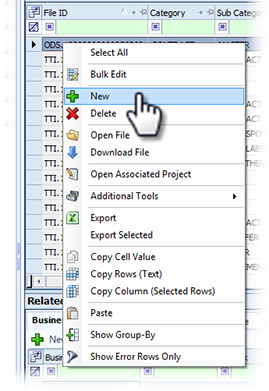
|
-
In the Contract tab, there are two sections:
-
File Properties: This section has the following fields:

-
Project Tracker ID: You can select an ID from the drop-down, or type a new one if it isn’t in the list.
-
Parent File: To link the contract to a parent file, click the search icon in the Parent File field to open the search window.
Enter your search criteria and click Search. In the results window, select the parent file and click OK. -
File Category and File Sub Category: Select the Category from the drop-down list.
-
Title: Enter the title here
-
-
Contract Properties. The fields in this section allow you to enter the contract details.

-
-
Business Associates: Refer to Assigning a business associate
-
Note:See: Add a note with a contract
-
Media: See: Add the contract media
-
Seismic: See: Linking seismic to a new contract